GUIDE // UNITY
How to set up Texture Sheet Animation for a flipbook in Unity
Turn on the Texture Sheet Animation module of your Particle System, set Mode to Grid, enter the sheet's columns and rows under Tiles, such as 8 and 8, and leave Animation on Whole Sheet. Frame over Time then steps each particle through every frame across its lifetime, or you can switch Time Mode to FPS for a fixed rate.
- Godot 4 Available
- Unity Manual setup
- Unreal Engine Manual setup
- Roblox Studio Manual setup
- three.js Available
A draft compile is from $0.05, and new accounts start with $5 of usage.
01 // HOW TO
Set up the module
- Select the Particle System that already has your flipbook material in its Renderer module, and check Texture Sheet Animation.
- Set Mode to Grid. Tiles X is the number of columns and Tiles Y the number of rows, 8 and 8 for a 64 frame sheet.
- Leave Animation on Whole Sheet. Single Row plays one row only, for sheets that hold a different effect on each row.
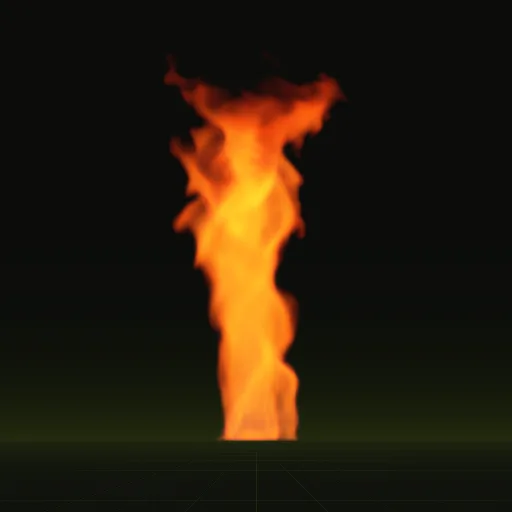
- Pick a Time Mode. Lifetime spreads all 64 frames across Start Lifetime, while FPS plays them at a set rate. The 2 s fire whirl has 64 frames, so FPS is 32.
- Leave Frame over Time on its default linear curve from 0 to 1, and Cycles at 1, unless the particle should repeat the clip. The curve is normalized: 0 is the first frame and 1 the end of the sheet, over the particle's lifetime.
- Press Play in the Scene view and compare the motion with
preview_anim.png, which shows the clip at its true speed.
using UnityEngine;

[RequireComponent(typeof(ParticleSystem))]
public class FlipbookSetup : MonoBehaviour
{
    public int columns = 8;
    public int rows = 8;
    public float framesPerSecond = 32f; // 64 frames over a 2 s loop

    void Awake()
    {
        var sheet = GetComponent<ParticleSystem>().textureSheetAnimation;
        sheet.enabled = true;
        sheet.mode = ParticleSystemAnimationMode.Grid;
        sheet.numTilesX = columns;
        sheet.numTilesY = rows;
        sheet.animation = ParticleSystemAnimationType.WholeSheet;
        sheet.timeMode = ParticleSystemAnimationTimeMode.FPS;
        sheet.fps = framesPerSecond;
    }
}
02 // HOW IT WORKS
How Unity counts the frames
Unity numbers the cells from the top-left corner, across each row and then down, so frame 0 is the top-left cell and frame 63 the bottom-right one on an 8 x 8 grid. Start Frame takes those frame numbers, while Frame over Time is normalized: 0 is the start of frame 0 and 1 the end of frame 63.
Unity reads the grid only from the numbers you type, never from the image. A sheet with 16 columns and 4 rows needs Tiles X 16 and Y 4; the same image with the wrong numbers plays cut-up frames. Spatial Compiler writes the grid, frame count and playback rate into layout.json, so you can copy them instead of guessing.
How do I make Unity read a texture as a flipbook instead of a single image?
Turn on Texture Sheet Animation on the Particle System and set Tiles to the grid size. Without this module, every particle shows the entire sheet.
How do I set the rows and columns of a flipbook in Unity?
In the Particle System, open Texture Sheet Animation and set Tiles X to the number of columns and Tiles Y to the number of rows.
How do I use a 16 by 4 sprite sheet in Unity?
In the Particle System, set Tiles X to 16 and Tiles Y to 4. Keep Animation on Whole Sheet so all 64 frames play in order.
How do I control the playback speed of a flipbook in Unity?
In the Particle System, set Time Mode to FPS and enter a rate or keep it on Lifetime and adjust Start Lifetime.
Compile your first effect
You pay per compile and see the price before it runs. New accounts start with $5 of usage.